

Autodesk
(7 bài viết)
-
 iLogic mở tất cả file step trong thư mục đích được chỉ định Sub Main() ' Tạo dialog chọn thư mục Dim oFolderDlg As New System.Windows.Forms.FolderBrowserDialog oFolderDlg.Description = "Chọn thư mục chứa các file STEP muốn mở" oFolderDlg.ShowNewFolderButton = False If oFolderDlg.ShowDialog() <> System.Windows.Forms.DialogResult.OK Then MessageBox.Show("Đã hủy thao tác.", "Mở file STEP", MessageBoxButtons.OK, MessageBoxIcon.Information) Return End If Dim folderPath As String = oFolderDlg.SelectedPath ' Lấy tất cả file .step và .stp trong thư mục (không lấy thư mục con) Dim stepFiles As String() = System.IO.Directory.GetFiles(folderPath, "*.step") Dim stpFiles As String() = System.IO.Directory.GetFiles(folderPath, "*.stp") ' Kết hợp hai mảng Dim allFiles As New System.Collections.ArrayList allFiles.AddRange(stepFiles) allFiles.AddRange(stpFiles) If allFiles.Count = 0 Then MessageBox.Show("Không tìm thấy file STEP nào trong thư mục:" & vbCrLf & folderPath, "Không có file", MessageBoxButtons.OK, MessageBoxIcon.Warning) Return End If ' Hỏi người dùng có muốn mở tất cả không Dim result As DialogResult = MessageBox.Show("Tìm thấy " & allFiles.Count & " file STEP." & vbCrLf & "Bạn có muốn mở tất cả không?", "Xác nhận mở file", MessageBoxButtons.YesNo, MessageBoxIcon.Question) If result = DialogResult.No Then Return ' Mở từng file STEP Dim openedCount As Integer = 0 For Each filePath As String In allFiles Try ' Mở file với tùy chọn mặc định (Import STEP) Dim oDoc As Document = ThisApplication.Documents.Open(filePath, True) openedCount += 1 Catch ex As Exception MessageBox.Show("Lỗi khi mở file:" & vbCrLf & filePath & vbCrLf & vbCrLf & ex.Message, "Lỗi mở file", MessageBoxButtons.OK, MessageBoxIcon.Error) End Try Next MessageBox.Show("Đã mở thành công " & openedCount & " / " & allFiles.Count & " file STEP.", "Hoàn tất", MessageBoxButtons.OK, MessageBoxIcon.Information) End Sub
 -
cmdNameApp - Cấu hình file cmdStyle.change.txt để chuyển đổi layer của inventor sang autocad Lệnh quy đổi: CSCA Nội dung file: _lisp/Config/cmdStyle.change.txt==|Entity NoPrint=AM_NoPrint NO-PRINT=AM_NoPrint Break Line (ISO)=AM_6 BreakLine=AM_6 Visible=AM_0 Visible (ISO)=AM_0 Hidden=AM_3 Hidden (ISO)=AM_3 Hidden Narrow (ISO)=AM_3 Centerline=AM_7 Centerline (ISO)=AM_7 Center Mark (ISO)=AM_7 Roll Centerline=AM_7 Work Axis (ISO)=AM_7 Section Line (ISO)=AM_4 Bend Centerline (ISO)=AM_7 Hatch (ISO)=AM_Hatch-6 Dimension (ISO)=AM_Dim Sketch Geometry (ISO)=AM_4 3D Sketch Geometry=AM_4 Symbol (ISO)=AM_Text Title (ISO)=AM_Text Border (ISO)=AM_4 Detail Boundary (ISO)=AM_4 Overlay (ISO)=AM_4 Reference (ISO)=AM_4 Bend Extent (ISO)=AM_4 Work Plane (ISO)=AM_4 Work Point (ISO)=AM_4 Visible Narrow (ISO)=AM_4 Tweak Trail (ISO)=AM_4 ==|Text Text=AM_Text note=AM_Text DIM=AM_Text
-
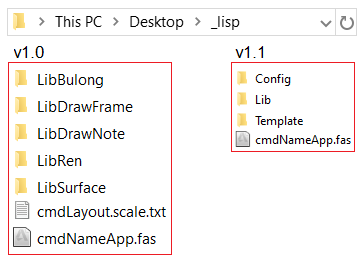
lisp cmdNameApp cho vẽ cơ khí Cài đặtTải xuống: cmdNameApp v1.1Giải nén thành thư mục _lisp ra ngoài Desktop (bắt buộc).Thư viện font bổ sung: SHX Fonts (bắt buộc; chỉ cần cài font vnsimple.shx, hoặc cài đặt hết).Trong Autocad:Sử dụng lệnh APPLOAD (lệnh tắt: AP) để load Contents với các file: cmdNameApp.fas.Sau đó load thông thường đối với 2 file này (không nằm trong mục Contents) với lựa chọn Always load.Sử dụng lệnh OPTIONS (lệnh tắt: OP) để thêm Support File Search Path trong tab Files.Sử dụng và issue1. Cửa sổ hướng dẫn chungLệnh ZA : Dùng để mở cửa sổ hướng dẫn sử dụng cho các nhóm lệnh cmdName. Bao gồm: cmdBlock, cmdLayer, cmdLayout, cmdStyle, cmdTable.Lệnh ZC : Dùng để mở cửa sổ hướng dẫn sử dụng cho nhóm lệnh cmdLib.2. Các nhóm lệnhcmdBlockLệnh tắtLệnh gốcChức năngCBRblock_renameĐổi tên hàng loạt block có cùng tên.CBNblock_noteTạo block ghi chú.cmdLayerLệnh tắtLệnh gốcChức năng-Z0..Z7Chuyển đổi layer nhanh (giống lệnh L0..L7 trong cad cơ khí)-ZH1..ZH7Nét hatch có màu giống Z1..Z7-Z00Nét 0 mặc định-Z01Nét không được in-Z02Nét Text-Z03Nét Dim-ZSSTạo nhanh bộ layercmdLayoutSử dụng kết hợp với lệnh SSM (sheet set manager) để kết xuất PDF.Lệnh tắtLệnh gốcChức năngCLPF, PFRAMEpaper_frameTạo layout thủ công với khổ giấy tiêu chuẩn.CLMPF, MFRAMEmulti_paper_frameTạo layout tự động với bản vẽ được chọn và khổ giấy tiêu chuẩn.cmdStyleLệnh tắtLệnh gốcChức năngCSStext_styleTạo nhanh text style Dim, Note, Bom.CSCtext_changeChuyển đổi text style giữa 2 đối tượng A và B.CSCAtext_change_amChuẩn hóa text style cho ghi chú, chuyển đổi layer trong file cmdStyle.change, và tự động dọn rác.CSDSdim_styleTạo nhanh dim style cùng tiền tố "AM_": x2, x2x2, x2p2; chuyển dim style.CSDAdim_alignCăn đường gióng giữa 2 dim liền nhau.CSDRdim_resetCăn các dòng dim song song, auto spacing.cmdTableSử dụng kết hợp với lệnh tableLệnh tắtLệnh gốcChức năngCTRtable_resizeSao chép kích thước và định dạng của bảng.CTUtable_updateCập nhật dữ liệu hàng loạt bảng trong layout.CTEtable_exportKết xuất dữ liệu bảng sang excel-csv.CTXtable_explodeChia tách các đoạn thằng trong bảng tại mọi nút giao (yêu cầu phải chạy lệnh X trước khi chạy lệnh này).cmdLibLệnh tắtLệnh gốcChức năngCIRMinsert_renInsert ren hệ mét.CIBMinsert_bulongInsert mối ghép bulong.CIDNinsert_draw_noteInsert đánh số, ghi chú: TT, mặt cắt, nhìn theo, hình trích.CIDFinsert_draw_frameInsert khung bản vẽ: A4..A0 theo hướng đứng hoặc ngang.CISRinsert_rarzInsert độ nhám theo phạm vi áp dụng 1992-2002 và kiểu áp dụng sau năm 2002.CISTinsert_toleranceInsert dung sai hình dạng và dung sai vị trí.Cập nhậtTest (alpha & beta) - 08/10/2025Core cmdName, cmdLib.Chưa hỗ trợ tiếng Việt trên Autocad đời thấp.v1.0 - 18/02/2026Giao diện người dùng dialog, menu có tiếng Việt chuẩn Unicode cho Autocad 2016+.cmdName, cmdLib.v1.1 - 05/03/2026Hỗ trợ Menubar, tổ chức lại cấu trúc thư mục.Chuẩn hóa cú pháp cho Text style, Dim style, Layer.Cập nhật cmdLib sau khi chuẩn hóa.Cập nhật hàm table_update: Thêm cho phép lựa chọn Single/Layout thay vì chỉ chọn update các trường trong toàn bộ layout. Single có thể thực hiện trong Model hoặc Layout đều được.Cập nhật hàm table_resize: Thêm copy kiểu bảng từ mẫu bảng (up/down).Cập nhật hàm paper_frame: Sửa lỗi tạo thủ công khung MV cho khổ giấy kiểu đứng.Thay thế hàm style_shx (lệnh tắt VNSHX) bằng text_style.Gộp hàm dim_set vào dim_style. Chuyển dim_style về ISO Standard.Thêm hàm ZSS để tạo nhanh bộ layer. Đổi tên lệnh AM0..AM7 thành Z0..Z7. Thêm ZH1..ZH7 để gọi hatch có màu giống với Z1..Z7.Thêm hàm text_change, text_change_am, block_note.Lược bỏ hàm block_stats.
-
iLogic tự động lấy tên sheet idw chuyển thành ký hiệu bản vẽ và mô tả LẤY KÝ HIỆU VÀ MÔ TẢ TỪ TÊN SHEETCode này chỉ áp dụng cho việc xuất bản vẽ trong inventor. Ví dụ: Sheet có tên là "00.00.00-Hình chung" thì sẽ split '-' nên chuỗi sẽ trở thành mảng có 2 phần tử đó là: "00.00.00" và 'Hình chung'.Dim sheetName As String Dim parts() As String Dim sheetCode As String = "" Dim sheetDesc As String = "" ' Lấy tên sheet hiện tại sheetName = ThisDrawing.ActiveSheet.Name ' Tách chuỗi theo dấu "-" parts = Split(sheetName, "-") ' Kiểm tra xem có đủ 2 phần không If parts.Length >= 2 Then sheetCode = parts(0).Trim() sheetDesc = parts(1).Trim() ' Loại bỏ phần ":số" ở cuối SheetDesc nếu có Dim colonIndex As Integer = sheetDesc.LastIndexOf(":") If colonIndex > 0 Then Dim afterColon As String = sheetDesc.Substring(colonIndex + 1).Trim() ' Kiểm tra xem phần sau dấu ":" có phải là số không Dim tempNumber As Integer If Integer.TryParse(afterColon, tempNumber) Then sheetDesc = sheetDesc.Substring(0, colonIndex).Trim() End If End If Else sheetCode = sheetName.Trim() sheetDesc = "" End If ' Gán giá trị vào Custom Properties iProperties.Value("Custom", "SheetCode") = sheetCode iProperties.Value("Custom", "SheetDesc") = sheetDesc ' Cập nhật document ThisApplication.ActiveDocument.Update() ' Hiển thị kết quả MessageBox.Show("Sheet Code: " & sheetCode & vbCrLf & "Sheet Description: " & sheetDesc, "Result")XUẤT BẢN VẼ HÀNG LOẠT DƯỚI DẠNG PDF VÀ DWG :Sử dụng API của Inventor: TranslatorAddIn6 - pdf và TranslatorAddIn2 - dwgImports System.Windows.Forms Imports System.IO Sub Main() ' Chọn tính năng xuất Dim choice As String = InputBox("Chọn tính năng:" & vbCrLf & _ "1 - Xuất bản vẽ với định dạng PDF" & vbCrLf & _ "2 - Xuất bản vẽ với định dạng AutoCAD DWG" & vbCrLf & _ "Nhập 1 hoặc 2:", "Xuất bản vẽ", "1") If choice = "" Then Exit Sub ' User cancelled Dim exportPDF As Boolean = (choice = "1") Dim exportDWG As Boolean = (choice = "2") If Not exportPDF And Not exportDWG Then MessageBox.Show("Lựa chọn không hợp lệ!") Exit Sub End If Dim outputPath As String = "" Dim resolution As String = "" Dim dwgVersion As String = "" Dim strIniFile As String = "P:\_auto-test\conf.ini" ' Mặc định file .ini ' Yêu cầu thông tin bổ sung dựa trên lựa chọn If exportPDF Then resolution = InputBox("Chọn độ phân giải (150/200/300/400/600/720/1200/2400/4800):", "Xuất bản vẽ với định dạng PDF", "1200") If resolution = "" OrElse Not {"150", "200", "300", "400", "600", "720", "1200", "2400", "4800"}.Contains(resolution) Then MessageBox.Show("Độ phân giải không hợp lệ! Vui lòng chọn từ danh sách.") Exit Sub End If outputPath = InputBox("Nhập đường dẫn thư mục để lưu file:", "Xuất bản vẽ với định dạng PDF", "P:\_auto-test\pdf\") ElseIf exportDWG Then dwgVersion = InputBox("Chọn phiên bản AutoCAD DWG (2010/2013/2018):", "Xuất bản vẽ với định dạng AutoCAD DWG", "2013") If dwgVersion = "" OrElse Not {"2010", "2013", "2018"}.Contains(dwgVersion) Then MessageBox.Show("Phiên bản DWG không hợp lệ! Vui lòng chọn từ danh sách.") Exit Sub End If strIniFile = InputBox("Nhập đường dẫn file .ini (mặc định: P:\_auto-test\conf.ini, đảm bảo có 'ALL SHEETS=No'):", "Xuất bản vẽ với định dạng AutoCAD DWG", "P:\_auto-test\conf.ini") If strIniFile = "" Then Exit Sub ' User cancelled outputPath = InputBox("Nhập đường dẫn thư mục để lưu file:", "Xuất bản vẽ với định dạng AutoCAD DWG", "P:\_auto-test\cad\") End If If outputPath = "" Then Exit Sub ' User cancelled If Not outputPath.EndsWith("\") Then outputPath = outputPath & "\" ' Tạo thư mục nếu chưa tồn tại If Not System.IO.Directory.Exists(outputPath) Then System.IO.Directory.CreateDirectory(outputPath) End If ' Lấy document hiện tại Dim drawDoc As DrawingDocument = ThisApplication.ActiveDocument ' Lưu sheet hiện tại để có thể quay lại Dim originalSheet As Sheet = drawDoc.ActiveSheet ' Đếm số sheet và log tên sheet Dim totalSheets As Integer = drawDoc.Sheets.Count Dim sheetNames As String = "Danh sách sheet:" & vbCrLf For Each sheet As Sheet In drawDoc.Sheets sheetNames = sheetNames & Sheet.Name & vbCrLf Next MessageBox.Show("Tổng số sheet: " & totalSheets & vbCrLf & sheetNames, "Thông tin sheet") Dim processedSheets As Integer = 0 Dim exportedIdentifiers As New List(Of String) ' Chỉ dùng cho DWG để phát hiện trùng lặp Try ' Duyệt qua từng sheet For Each sheet As Sheet In drawDoc.Sheets ' Activate sheet hiện tại Sheet.Activate() ' Cập nhật Custom Properties cho sheet hiện tại UpdateSheetProperties(Sheet.Name) ' Cập nhật document drawDoc.Update() ' Tạo tên file từ sheet name Dim fileName As String = GetSafeFileName(Sheet.Name) If exportPDF Then ' Export PDF tự động ExportToPDF(drawDoc, outputPath, fileName, resolution) ElseIf exportDWG Then Dim dwgPath As String = outputPath & fileName & ".dwg" ' Split filename để lấy unique identifier Dim parts() As String = fileName.Split("_"c) Dim uniqueIdentifier As String = "" If parts.Length >= 3 Then uniqueIdentifier = parts(0) & "_" & parts(1) ' e.g., "00.00_1" Else uniqueIdentifier = fileName ' Fallback End If ' Kiểm tra trùng lặp If exportedIdentifiers.Contains(uniqueIdentifier) Then MessageBox.Show("Tệp DWG đã tồn tại cho sheet với mã: " & uniqueIdentifier & vbCrLf & "Sheet: " & Sheet.Name, "Cảnh báo trùng lặp - Bỏ qua") Continue For End If ' Export DWG ExportToDWG(drawDoc, outputPath, fileName, dwgVersion, strIniFile) ' Thêm vào list exportedIdentifiers.Add(uniqueIdentifier) End If processedSheets = processedSheets + 1 ' Hiển thị tiến độ ThisApplication.StatusBarText = "Đang xử lý sheet " & processedSheets & "/" & totalSheets & ": " & Sheet.Name Next ' Quay lại sheet ban đầu originalSheet.Activate() ' Hiển thị thông báo hoàn thành Dim exportedFilesList As String = "" If exportDWG Then exportedFilesList = "Các tệp DWG đã xuất (mã duy nhất):" & vbCrLf & String.Join(vbCrLf, exportedIdentifiers) End If If exportPDF Then MessageBox.Show("Đã hoàn thành xuất " & totalSheets & " sheet thành PDF!" & vbCrLf & _ "Đường dẫn: " & outputPath, "Xuất bản vẽ với định dạng PDF") Else MessageBox.Show("Đã hoàn thành xuất " & processedSheets & " sheet thành DWG!" & vbCrLf & _ "Đường dẫn: " & outputPath & vbCrLf & exportedFilesList, "Xuất bản vẽ với định dạng AutoCAD DWG") End If Catch ex As Exception MessageBox.Show("Lỗi: " & ex.Message, "Lỗi") Finally ' Xóa thông báo trạng thái ThisApplication.StatusBarText = "" End Try End Sub ' Hàm cập nhật Custom Properties cho sheet Sub UpdateSheetProperties(sheetName As String) Dim parts() As String Dim sheetCode As String = "" Dim sheetDesc As String = "" ' Tách chuỗi theo dấu "-" parts = Split(sheetName, "-") ' Kiểm tra xem có đủ 2 phần không If parts.Length >= 2 Then sheetCode = parts(0).Trim() sheetDesc = parts(1).Trim() ' Loại bỏ phần ":số" ở cuối SheetDesc nếu có Dim colonIndex As Integer = sheetDesc.LastIndexOf(":") If colonIndex > 0 Then Dim afterColon As String = sheetDesc.Substring(colonIndex + 1).Trim() ' Kiểm tra xem phần sau dấu ":" có phải là số không Dim tempNumber As Integer If Integer.TryParse(afterColon, tempNumber) Then sheetDesc = sheetDesc.Substring(0, colonIndex).Trim() End If End If Else sheetCode = sheetName.Trim() sheetDesc = "" End If ' Gán giá trị vào Custom Properties iProperties.Value("Custom", "SheetCode") = sheetCode iProperties.Value("Custom", "SheetDesc") = sheetDesc End Sub ' Hàm tạo tên file an toàn (loại bỏ ký tự không hợp lệ) Function GetSafeFileName(fileName As String) As String Dim invalidChars() As Char = IO.Path.GetInvalidFileNameChars() For Each invalidChar As Char In invalidChars fileName = fileName.Replace(invalidChar, "_") Next Return fileName End Function ' Hàm export PDF sử dụng PDF Translator Add-In Sub ExportToPDF(drawDoc As DrawingDocument, outputPath As String, fileName As String, resolution As String) Try Dim pdfPath As String = outputPath & fileName & ".pdf" ' Tìm PDF Add-In Dim pdfAddIn As TranslatorAddIn = ThisApplication.ApplicationAddIns.ItemById("{0AC6FD96-2F4D-42CE-8BE0-8AEA580399E4}") If pdfAddIn IsNot Nothing Then Dim context As TranslationContext = ThisApplication.TransientObjects.CreateTranslationContext context.Type = IOMechanismEnum.kFileBrowseIOMechanism Dim options As NameValueMap = ThisApplication.TransientObjects.CreateNameValueMap ' Check whether the translator has 'SaveCopyAs' options If pdfAddIn.HasSaveCopyAsOptions(drawDoc, context, options) Then ' Options for drawings... options.Value("All_Color_AS_Black") = 0 options.Value("Remove_Line_Weights") = 0 options.Value("Vector_Resolution") = Integer.Parse(resolution) options.Value("Sheet_Range") = PrintRangeEnum.kPrintCurrentSheet options.Value("Custom_Begin_Sheet") = 0 options.Value("Custom_End_Sheet") = 0 options.Value("Include_Dimensions") = 0 options.Value("Include_Notes") = 0 options.Value("Include_Borders") = 0 End If Dim dataMedium As DataMedium = ThisApplication.TransientObjects.CreateDataMedium dataMedium.FileName = pdfPath ' Publish document pdfAddIn.SaveCopyAs(drawDoc, context, options, dataMedium) Else MessageBox.Show("Không tìm thấy PDF Add-In!", "Lỗi") End If Catch ex As Exception MessageBox.Show("Lỗi khi xuất PDF cho sheet: " & fileName & vbCrLf & _ "Lỗi: " & ex.Message, "Lỗi PDF") End Try End Sub ' Hàm export DWG sử dụng INI file Sub ExportToDWG(drawDoc As DrawingDocument, outputPath As String, fileName As String, dwgVersion As String, strIniFile As String) Try Dim dwgPath As String = outputPath & fileName & ".dwg" ' Tìm DWG Add-In Dim dwgAddIn As TranslatorAddIn = ThisApplication.ApplicationAddIns.ItemById("{C24E3AC2-122E-11D5-8E91-0010B541CD80}") If dwgAddIn IsNot Nothing Then Dim context As TranslationContext = ThisApplication.TransientObjects.CreateTranslationContext context.Type = IOMechanismEnum.kFileBrowseIOMechanism Dim options As NameValueMap = ThisApplication.TransientObjects.CreateNameValueMap ' Check whether the translator has 'SaveCopyAs' options If dwgAddIn.HasSaveCopyAsOptions(drawDoc, context, options) Then options.Value("Export_Acad_IniFile") = strIniFile ' Sử dụng file INI options.Value("Export_Acad_Version") = dwgVersion ' Override phiên bản nếu cần options.Value("AllSheets") = "No" ' Đảm bảo chỉ xuất sheet hiện tại options.Value("Sheet_Range") = PrintRangeEnum.kPrintCurrentSheet ' Safeguard thêm End If Dim dataMedium As DataMedium = ThisApplication.TransientObjects.CreateDataMedium dataMedium.FileName = dwgPath ' Export document dwgAddIn.SaveCopyAs(drawDoc, context, options, dataMedium) Else MessageBox.Show("Không tìm thấy DWG Add-In!", "Lỗi") End If Catch ex As Exception MessageBox.Show("Lỗi khi xuất DWG cho sheet " & fileName & ": " & ex.Message, "Lỗi DWG") End Try End Sub
-
lisp tạo thước đo góc Thực ra cái này thì bạn có thể hoàn toàn tạo được bằng lệnh ARRAYPOLAR nhưng việc đánh số khá mất thì giờ; vậy nên bạn có thể tham khảo lisp này.(defun c:angle360 ( / pt r ang p x y txt) (setq pt (getpoint "\nChọn tâm đường tròn: ")) ; Tâm đường tròn (setq r (getreal "\nNhập bán kính đặt số: ")) ; Khoảng cách ra ngoài (setq ang 0) ; Bắt đầu từ góc 0 độ (repeat 36 (setq p (* pi (/ ang 180.0))) ; Chuyển độ sang radian (setq x (+ (car pt) (* r (cos p)))) (setq y (+ (cadr pt) (* r (sin p)))) (setq txt (strcat "GOC=" (itoa ang))) (command "TEXT" (list x y) "0" "5" "0" txt) (setq ang (+ ang 10)) ; Tăng lên 10 độ mỗi bước ) (princ "\nĐã đánh số đủ số góc quanh đường tròn.") (princ) )Để sử dụng lisp này, bạn cần tạo thêm 1 file txt ngang hàng với file này có nội dung dạng:GOC=0 GOC=10 GOC=20 GOC=30 GOC=40 GOC=50 GOC=60 ... GOC=350Cuối cùng, thực hiện lệnh angle360 để vẽ thước đo góc 360deg